Model generation settings
Creating a 3D model from simple photographs is easier than you might think with My AR Studio. However, to achieve a realistic and professional result, it’s important to understand two key factors that directly influence the final quality:
-
The quality of your source images
-
The selected generation level
Image Quality
Every 3D model starts with the photos you upload: the sharper and more detailed they are, the more accurate and realistic the final result will be.
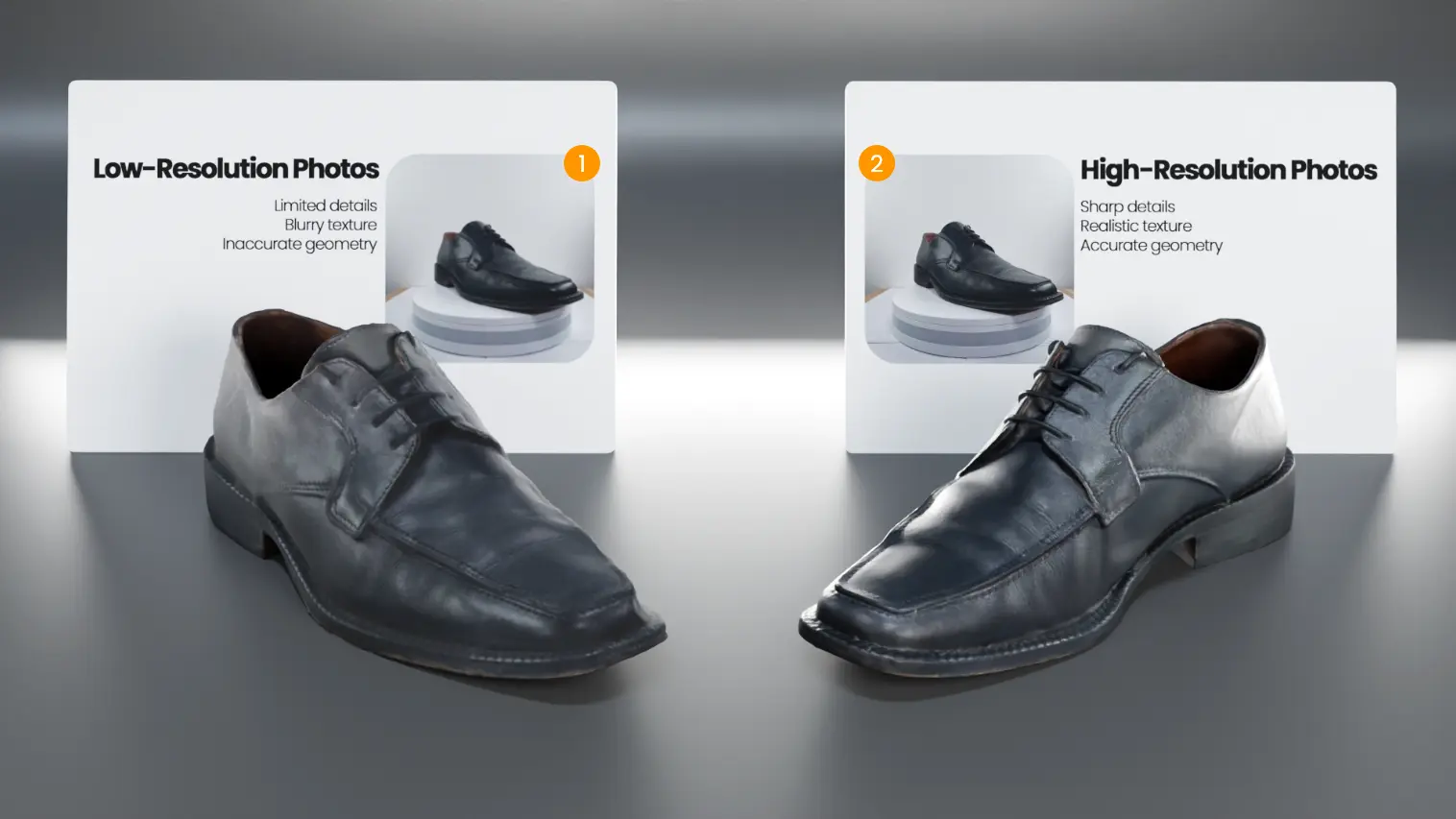
With low-resolution images 1, textures will look less defined and geometric details may be simplified.
With high-resolution images 2, you’ll get sharper textures, more accurate geometry, and a higher overall level of detail.
Generation Levels
During the creation process, My AR Studio lets you choose from three generation levels, each designed to balance speed, detail, geometric complexity, and the type of textures produced.
-
Low 1: Generates lightweight models quickly, ideal for previews. Only the essential Color and Normal textures are produced, which is enough for a clean but less detailed result.
-
Medium 2: A balanced choice between quality and performance. It produces the same (Color and Normal) textures but with higher detail and more accurate surfaces.
-
High 3: Designed for maximum realism. In addition to Color and Normal, this level also generates an advanced packed texture that includes Roughness and Metalness in separate channels. This allows for more realistic surfaces, believable materials, and a professional final look.
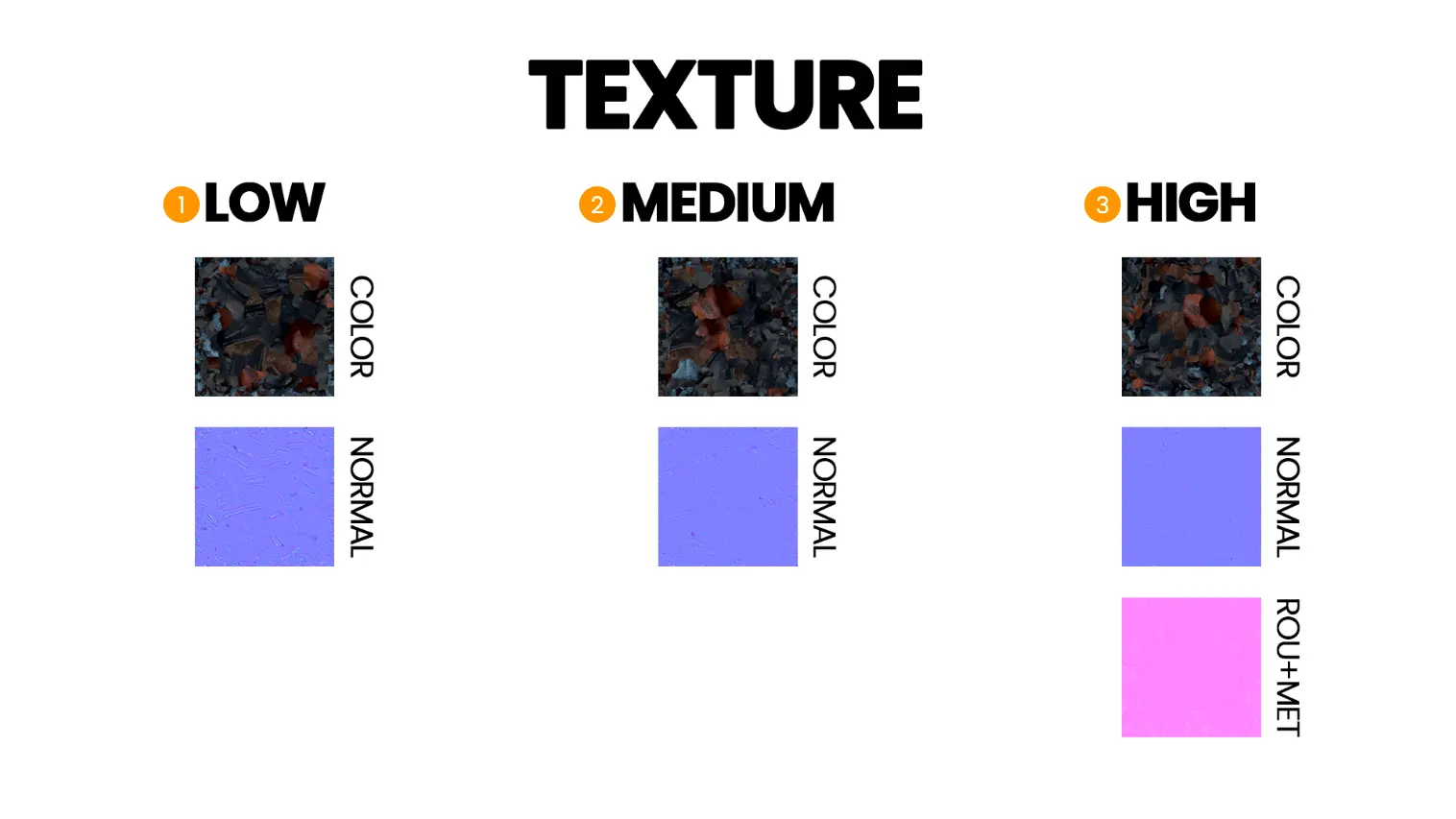
Photo Resolution and Final Model Size
The resolution of your source images directly affects the quality of the textures, the geometric complexity, and the final model size. Here’s what to expect based on the resolution of your photos:
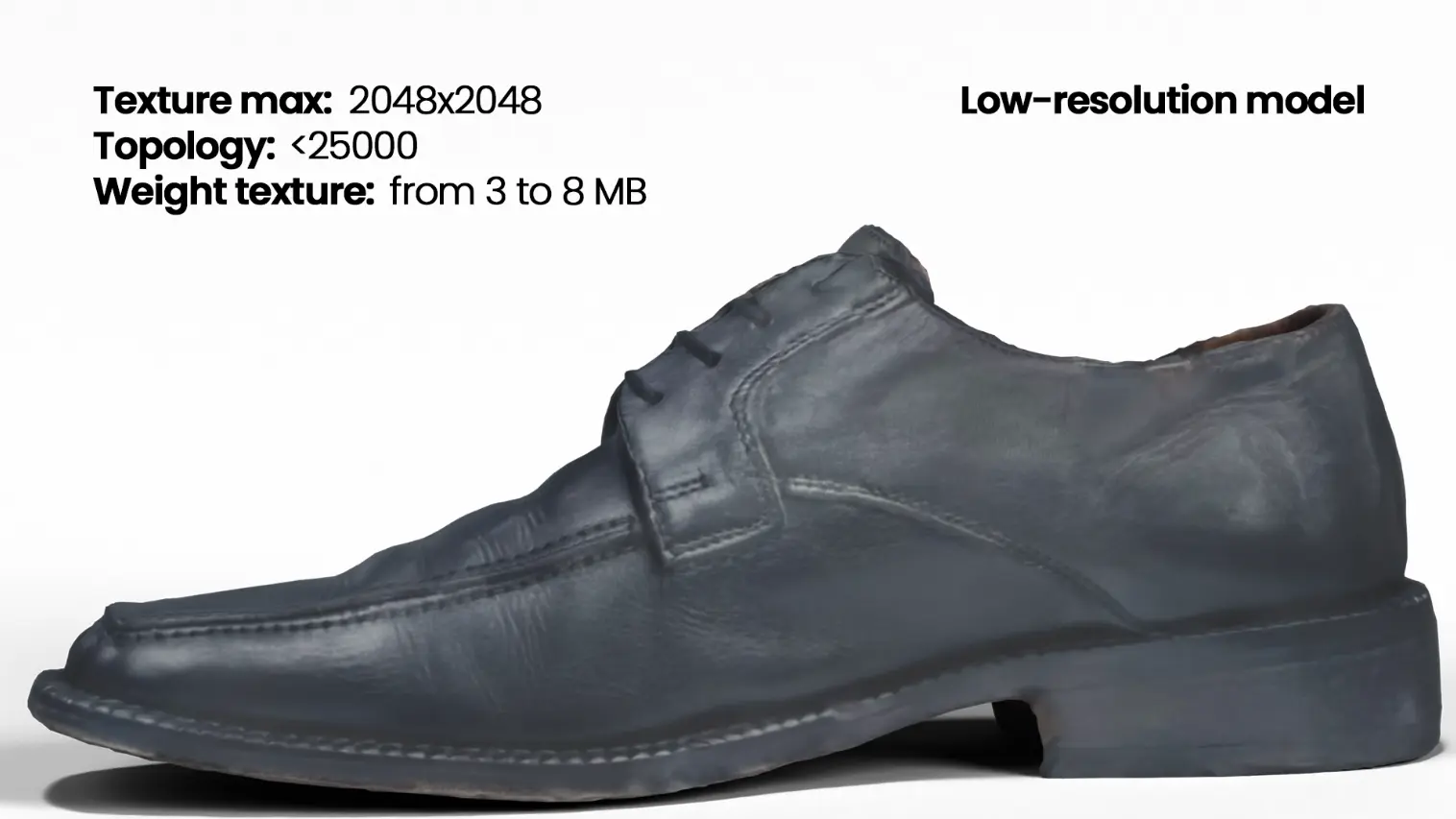
- With 1K photos Texture resolution can reach up to 2048×2048 px. In this case, topology remains almost unchanged across generation levels, with the polygon count staying below 25000. The main difference is file size, which can range from around 5 MB to 10 MB, depending on the textures generated.
-
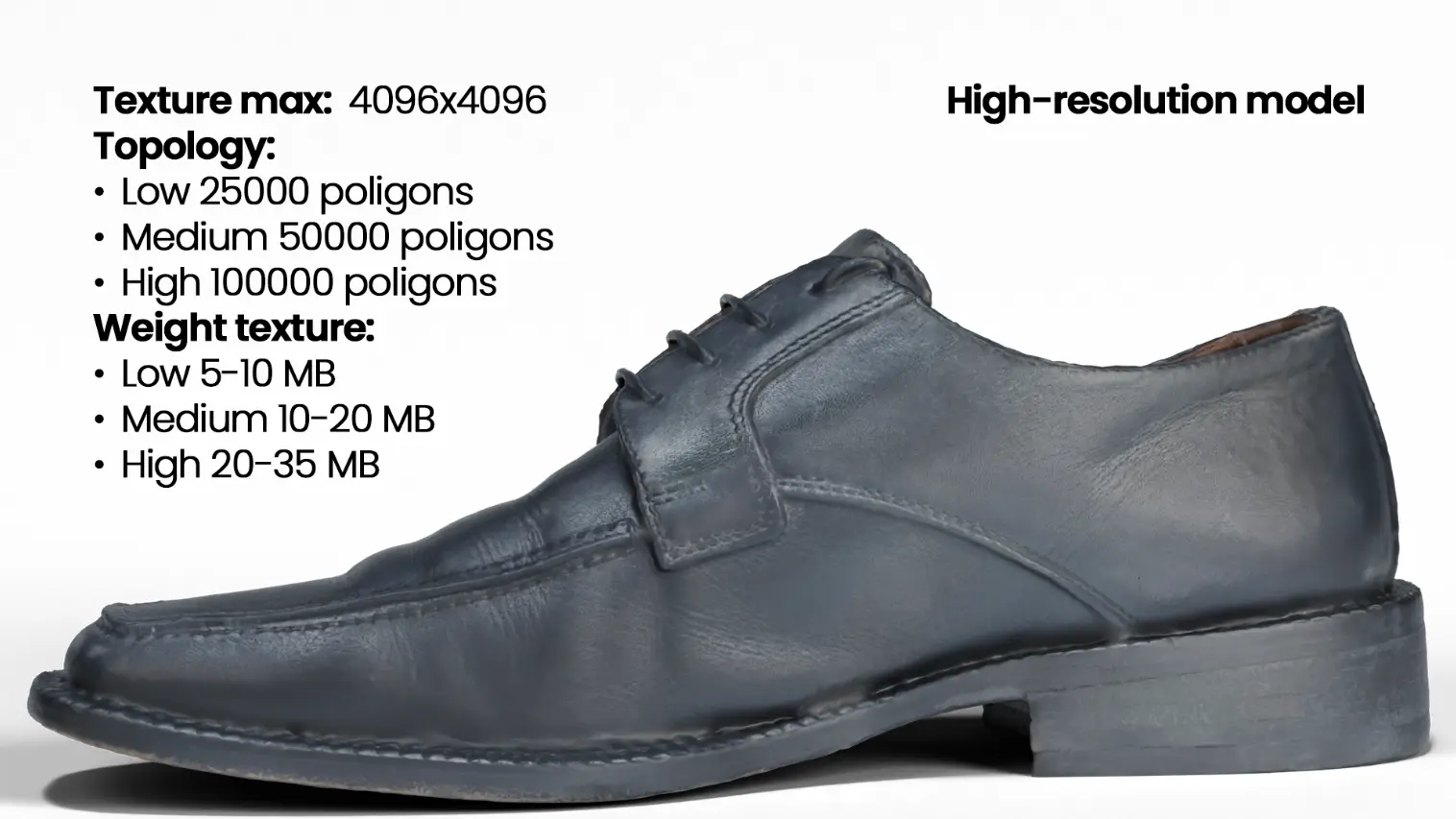
With 3K photos Texture resolution can reach up to 4096×4096 px, and the model’s geometric complexity increases. The polygon count scales with the chosen generation level:
-
Low: ~25000 polygons
-
Medium: ~50000 polygons
-
High: ~100000 polygons
As a result, file size also increases, ranging from about 5 MB to 35 MB depending on the complexity and included textures.
How to Choose the Right Level
There’s no single “best” generation level: it all depends on the quality of your photos and how you plan to use the model.
With low-resolution photos: Choose Medium for a good balance between detail and file size.
With high-resolution photos: Go for High if you want maximum realism, or stay with Medium for lighter, easier to handle models.
| 🍃 Low | ⚖️ Medium | 🚀 High |
|---|---|---|
| Lightweight and fast | Balanced and versatile | Maximum detail |
| Color + Normal | Color + Normal | Color + Normal + Roughness e Metalness |
| Perfect for previews | Ideal for lightweight, detailed models | For photorealistic visuals and advanced rendering |
[Generate now →] (https://panel.myarstudio.cloud/object-capture/package/new)
Summary
The generation process in My AR Studio is straightforward, but to achieve truly professional results, it’s crucial to start with the best possible images and choose the generation level that best suits your needs.
By doing so, you’ll get accurate, realistic 3D models ready for any purpose, from augmented reality experiences to next-generation immersive content.